Learn

Which WordPress plugin adds Meta Pixel or Google Analytics? How to find it

You see the Meta Pixel or Google Analytics on your WordPress site and you do not know which plugin puts it there. This guide shows how to find the source in two steps: confirm the tag and copy its ID, then look for that ID in the five places tags usually come from.

To see which trackers your site loads right now, run the free WordPress check.

Check my WordPress site

Why it is hard to tell

A WordPress page is put together by WordPress, the theme and every active plugin. Any of them can print a script into the page, and the page does not say who printed what. The same Google tag can come from Site Kit, from a snippet someone pasted into WPCode two years ago, or from a Tag Manager container. Often it comes from two of them at once, and the site counts every visit twice.

Switching plugins off one by one works, but on a live site it breaks things, and it misses the tags that sit in the theme or in a container. Following the tag's ID is faster and safe.
Step 1: confirm what loads and copy its ID

  1. Open your home page in a private window and do not answer the cookie banner.
  2. Open the browser's developer tools, go to the Network tab and reload. Type the address from the table below into the filter.
  3. Then open View Source (Ctrl+U or Cmd+Option+U) and search for the same address or for the ID. Copy the ID: it is what you will look for inside WordPress.
TrackerFilter the Network tab byThe ID looks like
Google tag / Google Analyticsgoogletagmanager.com/gtag/jsG-XXXXXXX (Analytics), AW-XXXXXXX (Ads)
Google Tag Managergoogletagmanager.com/gtm.jsGTM-XXXXXX
Meta Pixelconnect.facebook.net/…/fbevents.jsA 15 to 16 digit number in fbq('init', …)
LinkedIn Insightsnap.licdn.com_linkedin_partner_id
TikTok Pixelanalytics.tiktok.comttq.load('…')
Hotjarstatic.hotjar.comhjid
Microsoft Clarityclarity.msThe project ID after clarity.ms/tag/

If a tag is not in View Source but shows up in the Network tab, something added it after the page loaded. That is usually a Tag Manager container or another script, not a plugin printing it directly.

Step 2: look for the ID where tags usually live

Go through these places in order and note every one that has the ID.

WhereCommon examplesHow to check
A tracking pluginSite Kit by Google, MonsterInsights, ExactMetrics, GTM4WP, PixelYourSite, Meta for WooCommerce, TikTokOpen the plugin's settings and look for the ID you copied. If it is there, that plugin places the tag.
A snippet pluginWPCode (Insert Headers and Footers), Code Snippets, Header Footer Code ManagerOpen the list of active snippets and the header and footer boxes, and search them for the ID.
The themeheader.php, footer.php, functions.php, or a file the theme includesSearch the theme's files for the ID. Code there runs on every page, whatever the plugins say.
Google Tag ManagerAny GTM-XXXXXX container on the pageIf the ID is nowhere in WordPress but a container is, the tag is inside the container. Open it in Tag Manager.
Outside WordPressYour host, CDN or a page builder's own settingsWhen nothing in WordPress or the container has it, ask whoever runs the hosting or built the site.

Two places at once is common: a plugin and an old snippet, or Site Kit and a container that also fires Google Analytics. That is why it pays to check all five, not stop at the first match.

The faster way: our plugin, coming soon

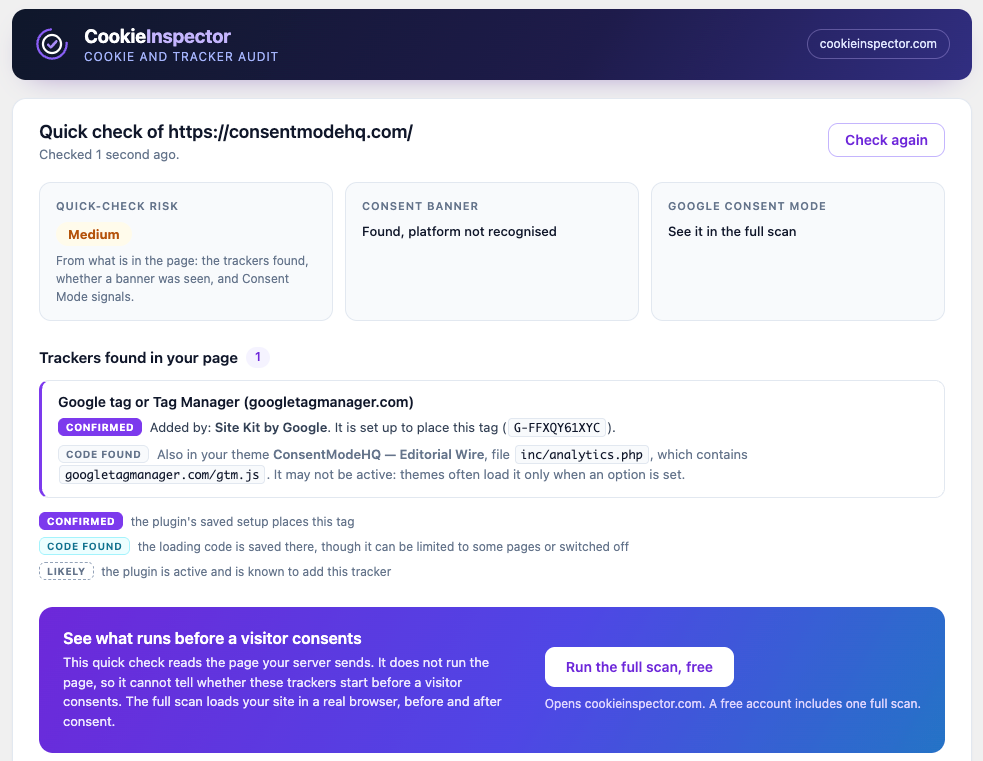
The CookieInspector plugin for WordPress does most of steps 1 and 2 for you. Press one button under Tools and it lists the trackers on your home page and, for each one, the plugin, snippet or theme file that adds it. It reads the HTML your server sends, so a tag added inside a Tag Manager container shows up as the container. It marks each answer as Confirmed (the plugin's saved settings place that tag), Code found (the code is in a snippet or a theme file) or Likely (the plugin is active and is known to add it). Your list of plugins, your snippets and your theme files never leave your site.

The CookieInspector plugin result: the Google tag, confirmed as added by Site Kit by Google, with dormant loading code also found in a theme file
The plugin's result on one of our own sites.

The plugin is coming soon to WordPress.org. Until then, the free WordPress check shows which trackers your page loads, with no account.

Once you have found it

  • Keep each tag in one place. Remove the duplicate from the snippet or the theme, not from the plugin you actually manage.
  • If it should not be there at all, remove it at the source. Deleting it from the theme without removing the plugin setting only moves the problem.
  • If it should stay, make it wait for the visitor's answer to the cookie banner. The guide on why Google Analytics fires before consent on WordPress covers the settings in Site Kit, MonsterInsights and GTM4WP.
  • Check again in a private window. Then run the free check to see the page as a visitor gets it.

See what your WordPress site loads

The free check lists the cookies and trackers your page loads, with no account and nothing to install.

Check my WordPress site